Canva is famous for its drag-and-drop design app, but it also includes a surprisingly capable Canva PDF Editor that lets you create and edit PDFs right in your browser, for free. If you have ever searched for a simple, free PDF editor or wondered how to edit a PDF without expensive software, Canva is one of the first names that comes up, and for good reason.
In this guide, we explain what the Canva PDF Editor is, its main features, pricing, and its pros and cons. You will also learn how to find and use it, whether it is safe and legal, how to download it, and how it compares with five strong alternatives, including Smallppt. By the end, you will know exactly whether Canva is the right tool for your documents, or whether another option fits you better.

- The Canva PDF Editor is a free, browser-based tool for creating and editing PDFs, best known for its ease of use.
- It shines at design and editing existing documents, but lacks advanced tools like OCR and signature tracking.
- The core editor is free; premium assets and brand kits require a paid Canva plan.
- For AI-driven presentations and documents, Smallppt is a strong alternative worth comparing.
What Is Canva PDF Editor?
The Canva PDF Editor is an online tool, part of the wider Canva design platform, that lets you open a PDF and edit its content directly in your web browser. Instead of starting from a blank page, you upload an existing PDF, and Canva converts it into a fully editable design where you can change text, move images, adjust backgrounds, and add new elements. It is often searched as the "canva pdf editor" or, by mistake, the "canvas pdf editor", but both refer to the same feature inside Canva.
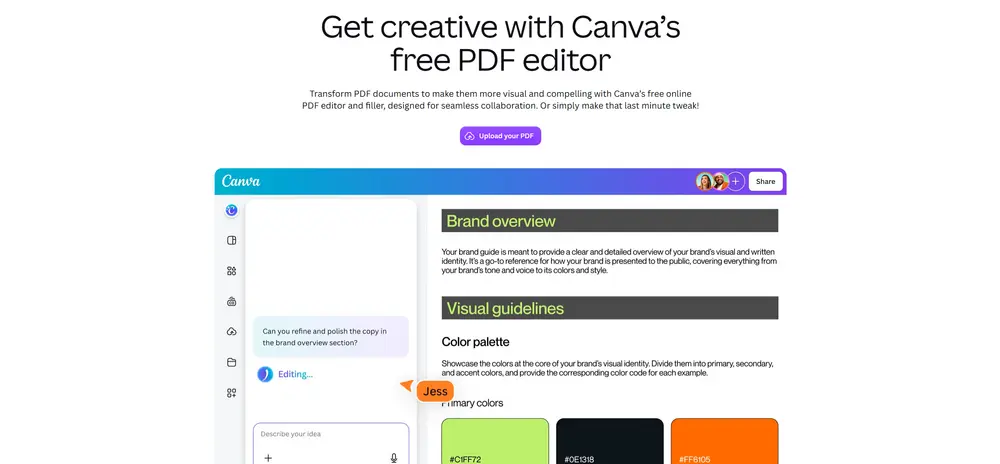
What makes it stand out is that it treats a PDF like a design project rather than a locked file. Once your document is uploaded, Canva identifies text blocks, images, and backgrounds, so you can click on almost any element and change it. According to a TechRadar review, it excels at file creation and modification, and is especially good at letting you make changes to existing documents, which is normally a premium feature elsewhere. In short, it is a design-first PDF editor, ideal for marketing materials, flyers, reports, and forms rather than heavy-duty document management.
Key Features of Canva PDF Editor
The Canva PDF Editor combines document editing with Canva's design toolkit. Here are its most useful features at a glance.
| Feature | What it does |
|---|---|
| PDF upload and conversion | Turns an existing PDF into a fully editable design in seconds |
| Drag-and-drop editing | Move text, images, and shapes freely, with smart alignment guides |
| Text and image editing | Click any element to edit, replace, duplicate, or delete it |
| Templates and elements | Access templates, stock photos, and vector graphics from the side panel |
| Print helpers | Add margins and bleed lines so nothing is cut off when printing |
| Apps and integrations | Connect Google Drive, Dropbox, Box, and more; import media easily |
| Extras | Built-in drawing tool, QR code generator, and easy sharing options |
Beyond the basics, the editor supports familiar keyboard shortcuts (copy, paste, duplicate, undo, redo), lets you nudge elements with the arrow keys, and adds invisible guidelines to help you align objects or center them perfectly. This is why even first-time users can produce a professional-looking document. The design panel on the left also gives quick access to backgrounds, uploads, and an Apps section packed with extra tools, from cloud imports to a handy QR code creator.
Canva PDF Editor Pricing
One of the biggest draws of the Canva PDF Editor is that the core tool is completely free. You can upload, edit, and download PDFs without paying, and the same free account also unlocks Canva's photo editor, video tools, and design app. For most everyday editing tasks, the free plan is genuinely enough, which is rare among PDF editors.
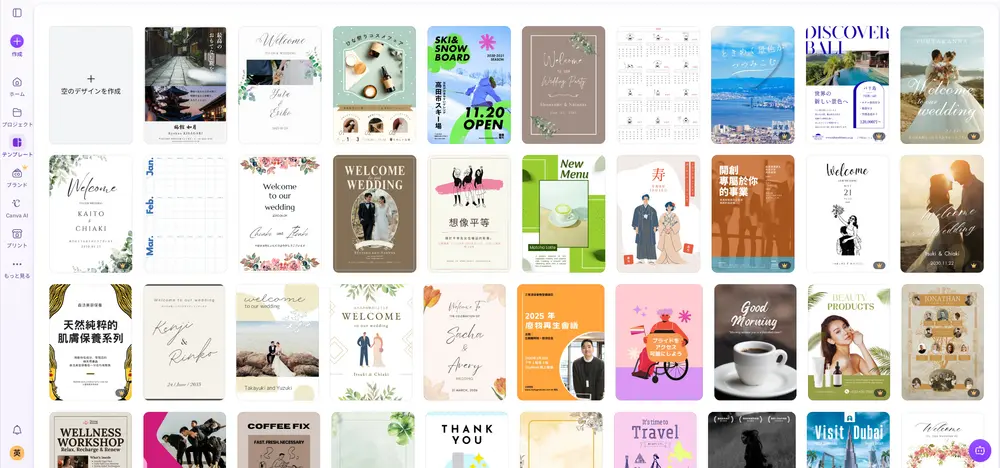
The limits appear when you want premium assets (such as certain stock photos and illustrations) or team features like brand kits. As an indication, Canva Pro costs around $15 per month, or roughly $120 per year when billed annually (which works out cheaper than paying monthly). Canva Business, aimed at teams, is around $20 per user per month, while Enterprise uses custom pricing. Canva also offers free Pro-level access for verified students, teachers, and eligible nonprofits. Prices vary by region and change over time, so always check Canva's official pricing page for the current rates before subscribing.
Canva PDF Editor: Pros and Cons
No tool is perfect. Here is an honest look at where the Canva PDF Editor shines and where it falls short, based on hands-on reviews and its feature set.
Strengths
- Free for core creation and editing
- Extremely easy and intuitive to use
- Excellent for editing existing PDFs
- Beautiful design tools and templates
- Works in any browser, no install needed
- Handy extras like QR codes and cloud imports
Cons
- Not a fully featured PDF editor
- No true OCR or signature tracking
- Limited file conversion and output formats
- Brand kits and premium assets need a subscription
- Requires a Canva account to start
- Cloud-based, so files are uploaded to servers
In practice, the Canva PDF Editor is a joy for creative and everyday tasks, but it is not built to replace heavy professional suites. If your work involves redaction, advanced OCR on scanned documents, or tracking who has signed a contract, you will feel its limits. For designing and editing attractive PDFs quickly, however, few free tools match it.
How to Find and Use Canva PDF Editor
Getting started is refreshingly simple, and you do not need any design experience. Here is how to find and use the Canva PDF Editor step by step, whether you want to edit a PDF or build one from scratch.
First, open your browser and go to the Canva website, then search for the PDF editor tool (you can type "PDF editor" in Canva's search bar, or look for the dedicated PDF editor page). Second, sign in or create a free Canva account, which only takes a minute. Third, upload the PDF you want to work on; Canva processes it and turns it into an editable document. Fourth, click any element, such as a text box or image, to edit, move, duplicate, or delete it, using the pop-up menu and drag-and-drop. Fifth, add anything you need from the left panel, such as new text, images, shapes, or a QR code. Finally, when you are happy, click Share or Download to export your finished file. If you would rather start fresh, create a new A4 design, pick a template, and export it as a PDF when done, the design process is the same.
💡 Pro tip: when moving elements, watch for Canva's invisible alignment guidelines. They snap objects into line and help you center content perfectly, so your edited PDF looks polished even if you are new to design.
Is Canva PDF Editor Safe?
Canva is a large, established platform used by hundreds of millions of people worldwide, and it runs over a secure (HTTPS) connection with account-based access. For everyday documents, using the Canva PDF Editor is generally considered safe, and the company publishes a privacy policy describing how it handles your data. Millions of businesses rely on it daily, which speaks to its overall trustworthiness.
That said, a sensible note of caution applies to any cloud-based tool: because you upload your file to Canva's servers to edit it, you should avoid processing highly sensitive or confidential documents (such as legal, medical, or financial records) unless you are comfortable with the platform's privacy terms and your organization's rules. Use a strong password, enable two-factor authentication if available, and review Canva's data policies for your specific needs. For most personal and marketing documents, though, safety is not a major concern.
Is Canva PDF Editor Legal?
Yes, Canva and its PDF editor are completely legal to use. Canva is a legitimate, widely used company, and editing your own PDFs, or documents you are authorized to modify, is perfectly lawful. There is nothing questionable about using a browser-based editor to design, update, or share your files.
The usual common-sense rules apply, as they would with any editing tool. Respect copyright and licensing: use only images, fonts, and content you have the right to use, and remember that some premium assets require a paid plan. Do not edit or alter documents you are not permitted to change, such as official records or contracts you do not own. And if you handle personal data, make sure your use complies with relevant privacy regulations. Used responsibly, the Canva PDF Editor raises no legal issues.
How to Download Canva PDF Editor
Here is a point that often confuses new users: the Canva PDF Editor is web-based, so there is nothing to download or install to use it. You simply open it in your browser and start working, which is part of what makes it so convenient. If you prefer, Canva also offers free desktop apps for Windows and macOS, plus mobile apps for iOS and Android, so you can edit on the go. These give the same experience in a dedicated window rather than a browser tab.
When people ask how to "download" Canva, they usually mean one of two things: getting the app, or saving their finished file. To install the app, visit Canva's website or your device's app store and download the official Canva application. To download your edited document, click the Share or Download button inside the editor, choose PDF as the file type, and save it to your device. Your finished PDF is then ready to print, email, or upload wherever you need it.
What Users Think of Canva PDF Editor
Overall, the Canva PDF Editor enjoys a strong reputation, especially among non-designers. Reviewers consistently praise how easy it is to use and how much you can do for free, with expert testers highlighting that it is remarkably simple to create and edit files and that designing with it is genuinely enjoyable. The free tier, in particular, is often described as one of the most generous in the category.
The criticism is just as consistent: it is not a full replacement for a dedicated PDF suite. Users who need advanced features, such as OCR on scanned documents, redaction, or signature workflows, note that Canva is not built for that. Some also point out that certain assets and brand kits sit behind a paywall. In short, the feedback matches the tool's positioning: brilliant for design-led PDF editing, less suited to complex document management. Your own experience will depend on which of those camps you fall into.
Who Should Use Canva PDF Editor?
The Canva PDF Editor is not for everyone, and knowing whether it fits your needs will save you time. It is an excellent choice if you are a small business owner, marketer, teacher, student, freelancer, or anyone who wants to create good-looking PDFs without learning complex software. If you regularly design flyers, brochures, one-page reports, event programs, simple forms, or social documents, and you value speed and beautiful templates over deep technical control, Canva is likely all you need, and the free plan will cover most of it.
On the other hand, if you work in law, finance, or any field that demands professional document management, you may quickly outgrow it. Tasks like running OCR on scanned contracts, redacting confidential information, tracking signatures, or converting between many precise file formats are better handled by dedicated tools such as Adobe Acrobat or Foxit. And if your day-to-day work is really about building presentations and long documents from scratch, an AI-first platform like Smallppt will get you to a finished result faster than manual design. The smart approach is to be honest about your main use case, then pick the tool that was built for it.
Tips to Edit a PDF Faster in Canva
Once you know how to edit a PDF in Canva, a few habits make the process even quicker and cleaner. Start by tidying your uploaded file: delete any elements you do not need before adding new ones, so your workspace stays uncluttered. Use the alignment guidelines and the arrow keys for precise placement rather than eyeballing positions, and lean on keyboard shortcuts (copy, paste, duplicate, undo) to speed up repetitive edits. If you are preparing a document for print, turn on margins and bleed lines early, so nothing important sits too close to the edge.
It also helps to work with Canva's building blocks. Rather than formatting everything by hand, start from a template that is close to what you want, then swap in your own text and images. Save your brand colors and fonts if you have a paid plan, so every document stays consistent. Finally, use the Share options to collaborate: you can invite others to comment before you finalize, which is far easier than emailing versions back and forth. These small habits turn Canva from a simple editor into an efficient document workflow.
Pricing, plans, and features for Canva and every tool mentioned here change over time and can vary by region. The figures in this article are approximate and provided as a general guide only; always check each provider's official website for current details before subscribing. Smallppt's own features and pricing are indicative and may change.
Canva PDF Editor vs 5 Alternatives (Including Smallppt)
Canva is excellent, but it is not the only option. Depending on whether you want AI-powered documents, heavy-duty editing, or a quick browser tool, another platform may suit you better. Here is how the Canva PDF Editor compares with five popular alternatives, including Smallppt.
| Best for | Pricing (approx.) | Standout strength | |
|---|---|---|---|
| Canva PDF Editor | Design-led PDF editing | Free; Pro around $15/mo | Beautiful, easy design tools |
| Smallppt | AI presentations and documents | Free plan; paid tiers | One-click AI content creation |
| Adobe Acrobat | Professional PDF work | Paid; subscription | Full OCR, e-sign, security |
| Smallpdf | Quick browser PDF tasks | Free limited; paid Pro | Simple, all-in-one PDF tools |
| Foxit PDF Editor | Business document teams | Paid; subscription | Powerful editing and collaboration |
| LightPDF | Fast online conversions | Free limited; paid | Many quick online PDF tools |
Smallppt is an AI-powered platform built around presentations and documents. Where Canva focuses on hands-on design, Smallppt leans on artificial intelligence: you describe what you need, and its AI Presentation, AI Writer, AI Summarizer, and AI PDF tools generate polished content in a single click, with over 1,000 free templates. If your goal is to turn ideas or documents into finished slides and reports fast, Smallppt is the natural choice, and you can explore it at smallppt.com.
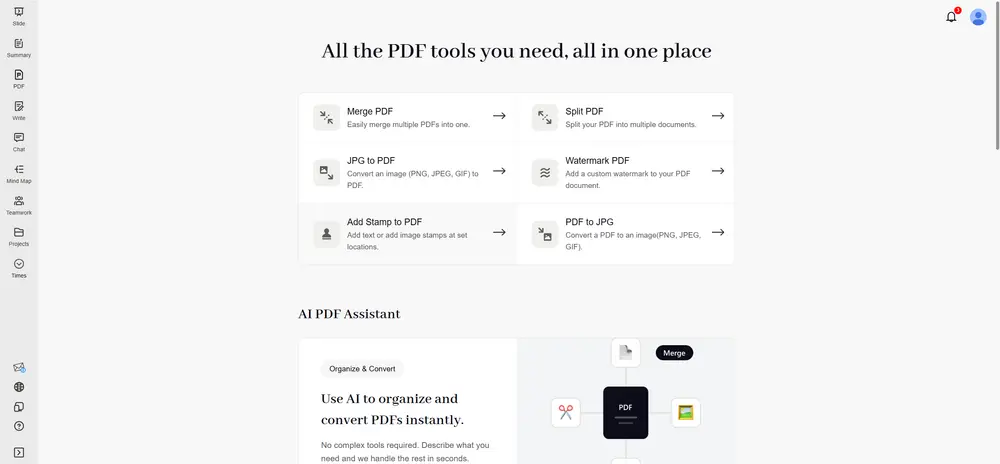
Among the others, Adobe Acrobat is the professional standard, with full OCR, e-signatures, redaction, and security, though it is a paid product. Smallpdf and LightPDF are handy browser-based suites for quick tasks like converting, merging, and compressing PDFs, with free tiers and paid upgrades. Foxit PDF Editor is a robust desktop-and-cloud editor aimed at business teams that need powerful editing and collaboration. The best pick depends on your priority: design (Canva), AI content (Smallppt), professional depth (Adobe, Foxit), or quick online tools (Smallpdf, LightPDF).
Create Presentations and Documents with Smallppt
If your real goal is not just editing a PDF but turning your content into a professional presentation or document, Smallppt can do the heavy lifting for you. Instead of designing slide by slide, you let AI build the first draft in seconds, then refine it.
Key features: one-click AI Presentation generation from a topic or your own text; an AI Writer and AI Summarizer to draft and condense content; and AI PDF and document tools to reuse what you already have. How to use it in five steps: open Smallppt, describe your topic or paste your content, let the AI generate your slides or document, pick a theme from over 1,000 free templates, then edit and export. It is a fast, modern way to go from idea to finished deck.
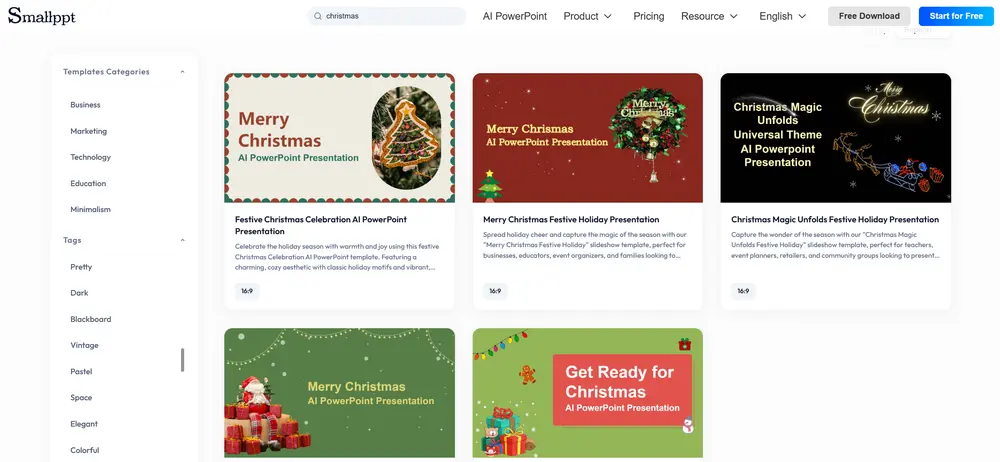
Open Smallppt's template library and search for "Christmas" to browse the matching festive designs.
Click "Generate with AI" on the festive template, or simply download it and manage the deck yourself.
Two ways to start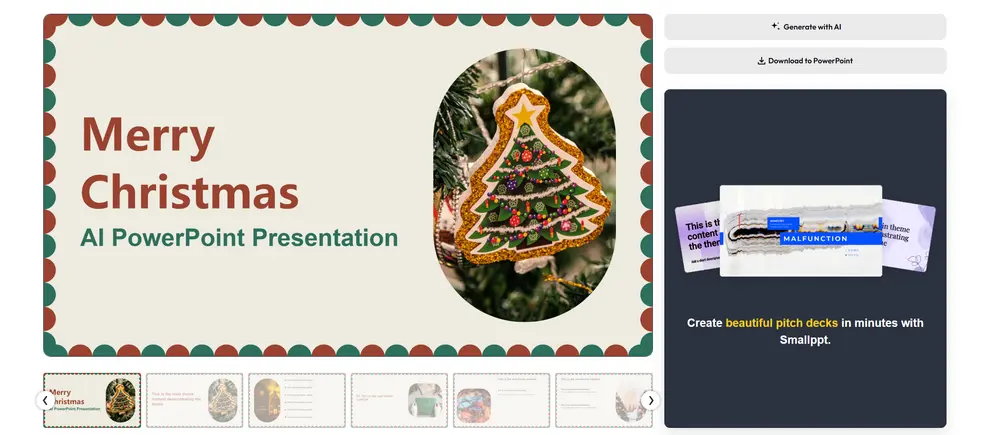
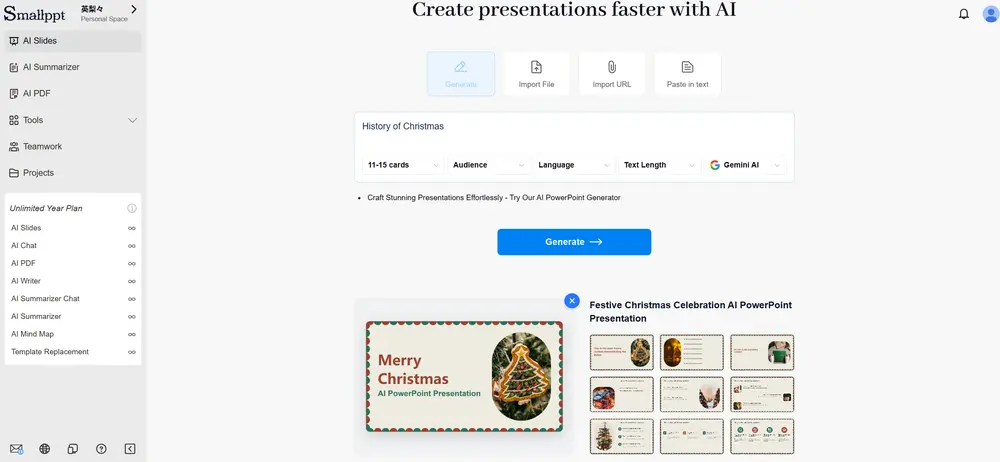
Type a few keywords about your holiday topic, set options like card count and language, then click Generate.
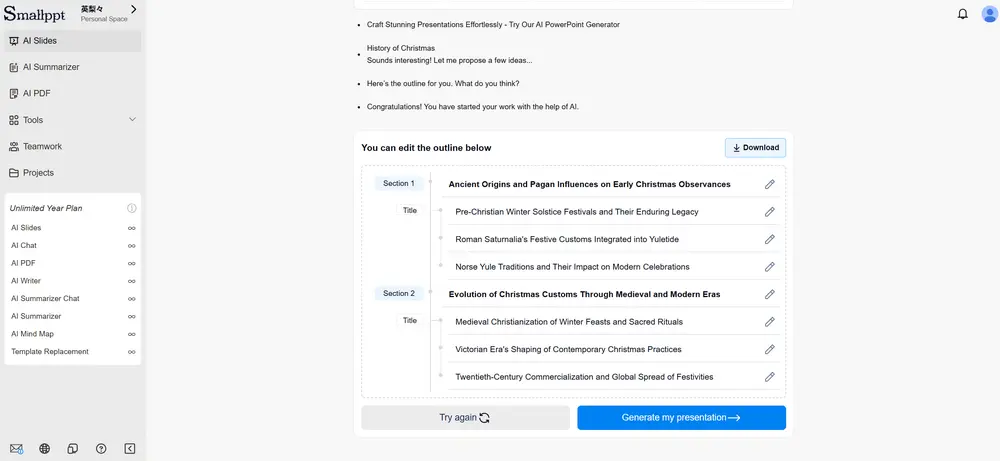
Review and edit the AI-generated outline, then click "Generate my presentation" to build the full deck.
Fine-tune every slide yourself until the festive look is exactly what you want.
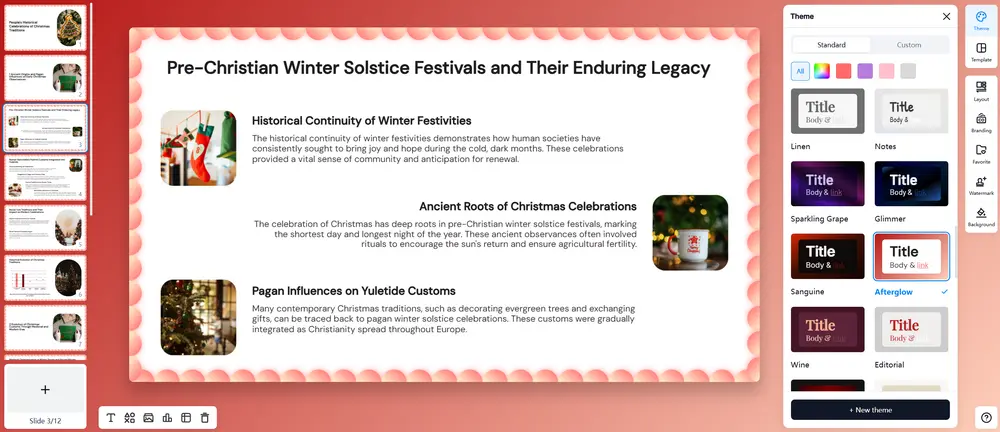
Smallppt delivers a complete, beautiful slide deck in roughly 20 seconds. From there you can easily edit the theme colors, layout and fonts, insert charts and tables, and manage your watermark. Every feature you need is built into Smallppt.
Conclusion
The Canva PDF Editor is one of the easiest and most generous free PDF editors available. It excels at creating and editing attractive, design-led documents in your browser, with no install required and a free tier that covers most everyday needs. Its main trade-off is depth: it is not a full professional suite, so it lacks advanced tools like OCR, redaction, and signature tracking. For flyers, reports, forms, and quick edits, though, it is hard to beat.
If you mainly need to design and tweak PDFs, Canva is a superb choice. If your real goal is to transform ideas or documents into polished presentations and reports with the help of AI, Smallppt is well worth a try, alongside options like Adobe Acrobat, Smallpdf, Foxit, and LightPDF for other needs. Match the tool to your priority, and you will get better results with far less effort.
Is the Canva PDF Editor free?
Yes, the core Canva PDF Editor is free to use. You can upload, edit, and download PDFs without paying. Some premium assets, such as certain stock images and brand kits, require a paid Canva plan, but for most everyday editing the free version is enough.
How do I edit a PDF in Canva?
Sign in to your free Canva account, open the PDF editor, and upload your file. Canva converts it into an editable design, then you click any text or image to change, move, or delete it. When finished, use the Share or Download button and export it as a PDF.
Is the Canva PDF Editor safe to use?
For everyday documents, yes. Canva is a large, established platform used by hundreds of millions of people and runs over a secure connection. As with any cloud tool, avoid uploading highly sensitive or confidential files unless you are comfortable with the platform's privacy terms.
Do I need to download anything to use Canva PDF Editor?
No. The Canva PDF Editor works entirely in your web browser, so there is nothing to install. If you prefer, Canva also offers free desktop apps for Windows and macOS and mobile apps for iOS and Android, but they are optional.
What is the best Canva PDF Editor alternative?
It depends on your goal. For AI-generated presentations and documents, Smallppt is a strong choice. For professional PDF work, Adobe Acrobat and Foxit lead. For quick browser tasks, Smallpdf and LightPDF are handy. Canva remains best for design-led PDF editing.