
Everyone has sat through a presentation that fell flat, and most of us have given one too. The difference between a forgettable talk and a great one rarely comes down to fancy software. It comes down to a clear message, well-designed slides, and confident delivery.
The good news is that all three can be learned. This guide pulls together proven presentation techniques and practical slide design advice to show you how to make a great presentation from start to finish: how to prepare a good PPT, how to create a PowerPoint presentation step by step, the best tips for slideshow presentations, and the delivery habits that keep an audience engaged.
Whether it is your first deck or your fiftieth, these steps will help you make a great slide presentation that people actually remember.
- Successful presentations rely on strong communication, confidence and clear delivery – not just good slides.
- Eye contact, body language and an open posture significantly increase audience engagement.
- Good preparation is essential, but over-rehearsing can make a presentation feel unnatural.
- A strong opening and a memorable ending have the biggest impact on how your presentation is remembered.
- Vary media, voice, pauses and actively involve the audience to keep attention high.
Prepare a good PPT before you open the app
Great presentations are won before a single slide is designed. The most common mistake is jumping straight into PowerPoint without a plan, so start with an outline instead. Decide the one core message you want your audience to walk away with, then choose the three to five points that support it and the order that tells the clearest story.
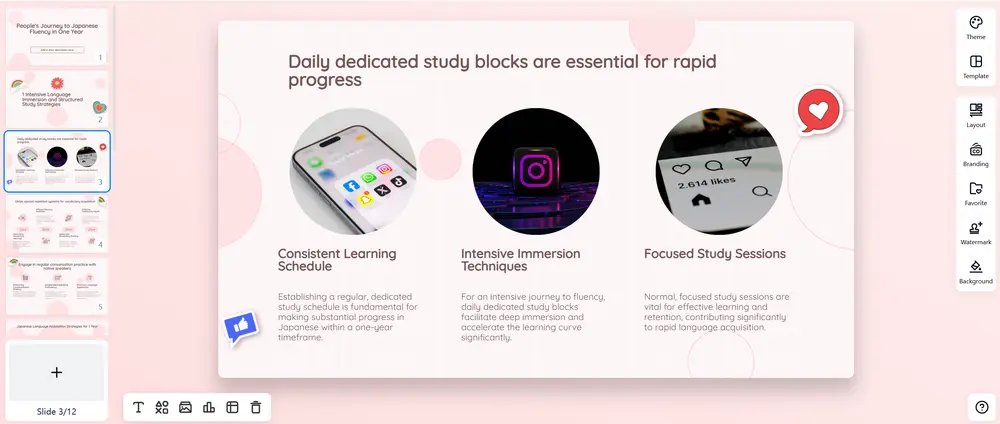
A simple structure of opening, main points, and conclusion works almost every time. As you plan, keep the runtime in mind: a good rule of thumb is roughly one slide per minute, so if you have far more slides than minutes, you probably have too much information and need to cut. Knowing how to prepare a good PPT really means knowing your audience and being ruthless about what is essential. Everything that does not serve your core message is a candidate for deletion.
How to create a PowerPoint presentation, step by step
Once your outline is ready, building the deck is straightforward. Here is how to create a PowerPoint presentation without needing to be a designer.
| Step | What to do |
|---|---|
| 1. Open PowerPoint | Launch the app and start from a blank deck or, faster, from a ready-made template. |
| 2. Choose a design theme | Pick colors, fonts and a background that match your purpose: minimal and clean for business, brighter for creative topics. |
| 3. Build the title slide | Add a clear title, your name and the date. Keep it simple, this is your visual handshake with the audience. |
| 4. Add and organize slides | Use New Slide and its layouts, and arrange content so each slide flows logically into the next. |
| 5. Insert visuals | Add high-quality images, charts, graphs or SmartArt that support your message rather than clutter it. |
| 6. Apply transitions sparingly | Stick to one simple effect like Fade or Push, and avoid a different animation on every slide. |
| 7. Reorder in Slide Sorter | Drag slides into the sequence that makes the most sense to a first-time viewer. |
| 8. Run the show | Present from the beginning and use speaker notes, which stay visible only to you. |
You do not have to start from a blank slide either. Picking a polished design first saves time and keeps your styling consistent, and smallppt offers 1000+ free templates you can customize in minutes for any topic or audience.
Slide design tips for slideshow presentations
Your slides are a visual aid, not a teleprompter. The goal is to support what you say, not duplicate it. These tips for slideshow presentations come straight from how the best decks are built: one idea per slide, generous white space, and visuals that do the heavy lifting. Use the list below as a quick design checklist.
Do
- Keep one idea per slide and follow the 6x6 rule: about six words per line and six lines per slide.
- Choose a clean sans-serif font like Arial or Helvetica at 24 point or larger.
- Use high contrast, light text on a dark background or dark text on a light one.
- Replace text with images, charts and graphs wherever you can, and label them clearly.
- Write an informative title on every slide so the point is clear at a glance.
- Stay consistent with fonts, colors and layout by using the slide master.
- Reveal points one at a time as you talk through them.
Avoid
- Cramming paragraphs onto a slide or reading it word for word.
- Tiny fonts, italics, underlines or ALL CAPS, which hurt readability and accessibility.
- Flashy transitions, animations and sound effects that distract from your message.
- Low-quality images or a barrage of visuals competing for attention.
- Busy, patterned backgrounds that make text hard to read.
- Packing in more slides than your time allows.
- Clutter, fill empty space with breathing room rather than more text.
Presentation techniques for confident delivery
Even a beautiful deck falls flat without strong delivery, and this is where great presenters separate themselves.
The single most important rule: do not read your slides. The text on screen is for the audience, while your job is to tell the story around it. Face the room rather than the screen, make eye contact, and keep an open posture with natural gestures, all of which noticeably increase engagement.
Vary your voice, change your pace, and use deliberate pauses to let key points land. Because attention peaks at the very beginning and the very end of a talk, open with a hook and close by repeating your take-home message on the final slide. Keep the audience involved by asking questions and varying your media.
Finally, prepare and practice, ideally in front of someone who has never seen the deck, time your run-through, and have a backup plan in case the technology fails. Just remember the balance from the takeaways above: rehearse enough to feel confident, but not so much that your delivery sounds robotic.
Rate My Presentation: check your deck before you present
Not sure whether your slides actually land? Before you present, it helps to get an objective second opinion, and Smallppt's latest Rate My Presentation feature gives you exactly that.
It evaluates your deck across five dimensions and more than 100 criteria, then returns clear, specific feedback along with concrete revision points, so you know precisely what is working and what to fix.
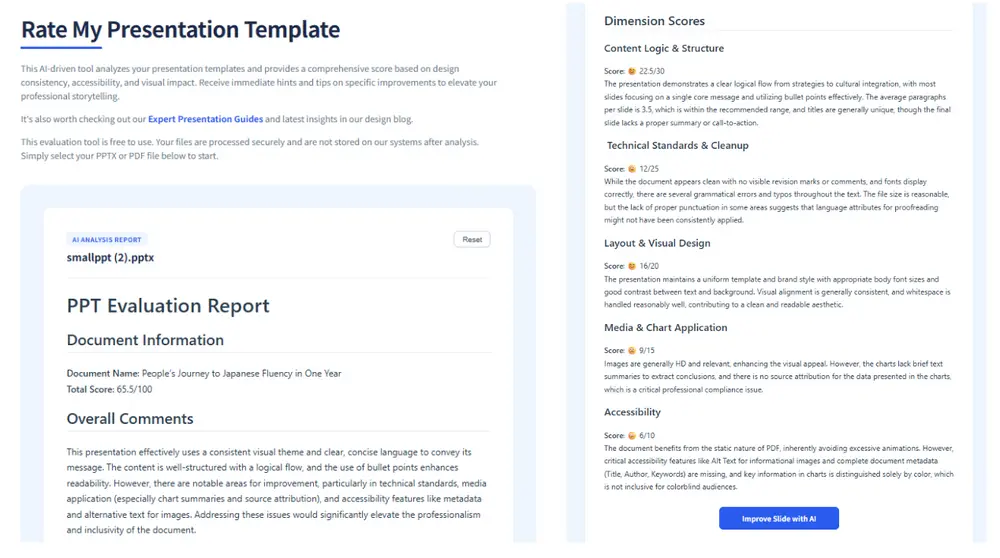
Instead of guessing, you get a structured read on your presentation and a short list of improvements that will make the biggest difference. Once you have seen your results, you can act on them right away: click the button below to let Smallppt help you improve the slides effortlessly.
How to improve your presentations with AI
If your score reveals room to grow, you do not have to rebuild the deck by hand. Smallppt can refine it for you in three simple steps.
Upload the PowerPoint file you want to improve and let Smallppt analyze it.
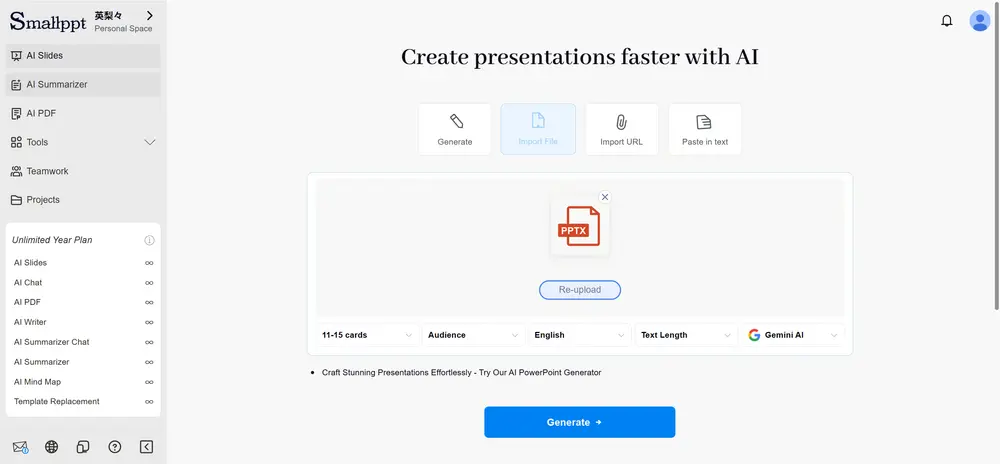
Review and edit the AI-generated outline, then click "Generate my presentation" to rebuild the deck.
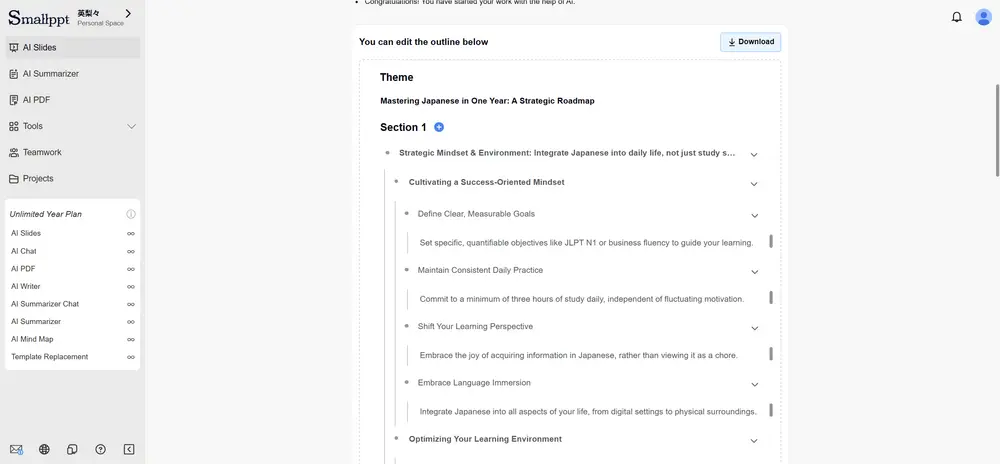
Fine-tune every slide yourself, adjusting theme, layout, fonts and visuals until it looks exactly the way you want.
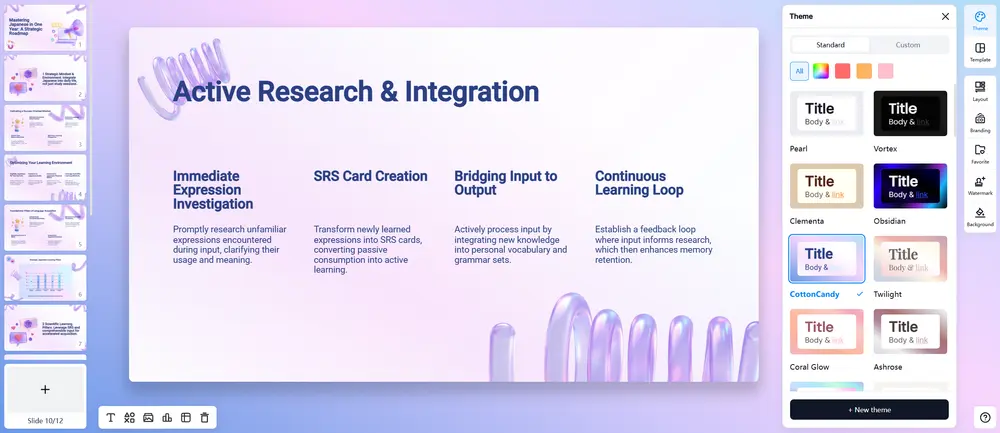
AI is a powerful starting point, but it does not replace you. Always review the generated content for accuracy, make it sound like your own voice, and rehearse out loud. The tool builds the deck; you still deliver the presentation.
Conclusion
Making a great presentation is not a mysterious talent reserved for a lucky few. It is a repeatable process: prepare a good PPT by starting with a clear message and outline, create your PowerPoint with consistent design and supporting visuals, follow proven tips for slideshow presentations to keep slides clean and readable, and practice the delivery techniques that hold an audience, strong opening, confident body language, varied voice, and a memorable close. When you want a head start, lean on ready-made templates and let AI handle the heavy lifting, then check your work with Rate My Presentation before you step on stage. Follow these steps and you will know exactly how to make a great slide presentation, every single time.
How do I make a great presentation?
Start with a clear core message and an outline, design clean slides that support rather than repeat your words, and practice a confident delivery with a strong opening and memorable ending. Great presentations combine good preparation, simple design and engaging speaking, not just attractive slides.
How do I prepare a good PPT?
Plan before you design. Decide the one message you want your audience to remember, choose three to five supporting points, and order them into an opening, body and conclusion. Aim for about one slide per minute and cut anything that does not serve your message.
What are the best tips for slideshow presentations?
Use one idea per slide, follow the 6x6 rule, pick a clean sans-serif font at 24 point or larger, and use high contrast. Replace text with images and charts, write informative titles, keep your design consistent, and avoid clutter, tiny fonts and flashy animations.
How many slides should a presentation have?
A useful rule of thumb is about one slide per minute. If you have many more slides than minutes, your presentation likely contains too much detail, so trim it down to the most essential points for a stronger, tighter talk.
How can I tell if my presentation is good before I present?
Get objective feedback. Smallppt's Rate My Presentation feature evaluates your deck across five dimensions and more than 100 criteria, then gives you clear feedback and specific revision points so you can fix weak spots before you go live.
Can AI help me make a great slide presentation?
Yes. Smallppt can generate a complete deck from a few keywords or improve an existing PowerPoint: import your file, refine the AI outline, then fine-tune the slides. You still review the content and deliver it, but the design and structure come together far faster.